
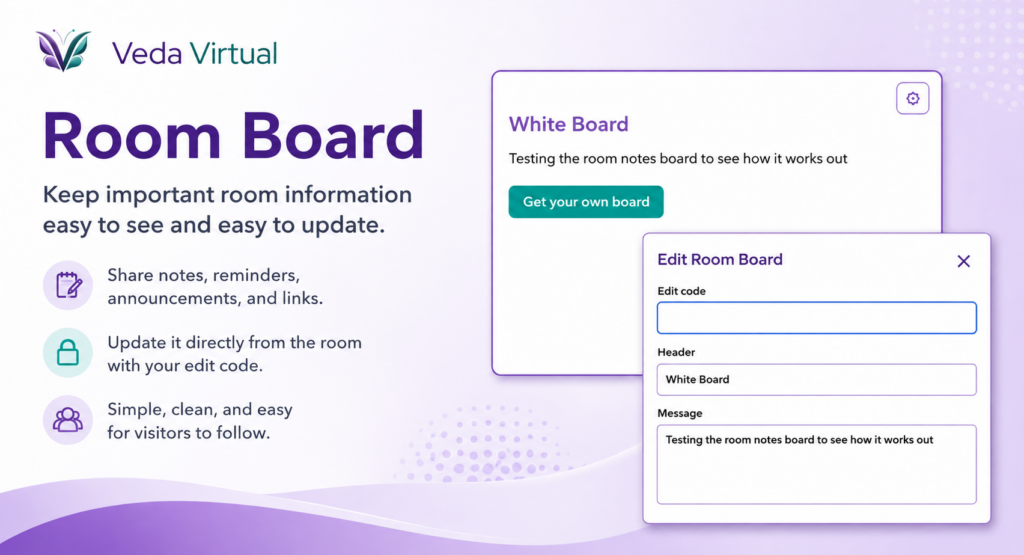
Room Board
Keep important room information visible with a simple editable board for notes, reminders, announcements, event details, instructions, and links.
Unlike the Bulletin Board, the Room Board is not for visitor submissions. It is a single shared message board that you control.
Add a heading, message, and optional button, then customize the colors, fonts, and alignment to fit your room.
The Room Board is especially useful for meeting notes, event schedules, welcome messages, room instructions, resource links, announcements, or anything you may need to update without rebuilding your room.
You can even update the board from inside the virtual room. Use the gear icon, enter the Room Edit Code, make your changes, and save them right on the board.
Try it out! Click the gear icon to see the in-room edit form. On your own Room Board, changes can only be saved with the correct Room Edit Code.
Room Board FAQ
Can another member change my saved Room Board from the Veda dashboard?
No. The saved widget belongs to your account. Another member cannot edit or delete it from your Veda dashboard.
Can different Room Boards have different edit codes?
Yes. Each saved Room Board can have its own Room Edit Code.
Can I add a button to the Room Board?
Yes. Add button text and a button link in the Room Board generator. The button will appear on the board when button text is provided.
Can I change the alignment of the Room Board content?
Yes. You can separately set the header, message, and button alignment to left, center, or right.
Can I change the full design from inside the room?
No. The in-room editor is meant for quick content and color updates. Full style settings such as fonts, alignment, background color, and border color are changed from the Room Board generator.
Can I change the Room Board colors?
Yes. You can set the background, border, header, message, button, and button font colors.
Can I change the Room Board from inside the virtual room?
Yes. Click the gear icon on the board, enter the correct Room Edit Code, make your changes, and save them without leaving the room.
Can I change the Room Board header?
Yes. You can change the header in the main Room Board generator or from the in-room editor.
Can I change the Room Board message?
Yes. The message can be updated from the main generator or directly inside the room with the correct Room Edit Code.
Can I choose different fonts for the header, message, and button?
Yes. The Room Board has separate font settings for the header, message, and button.
Can I enter HTML color codes for the Room Board?
Yes. The Room Board generator lets you choose colors visually and enter hex color codes.
Can I make more than one Room Board?
Yes. You can create multiple Room Boards for different rooms or purposes as long as you have available widget spots.
Can I preview the Room Board before saving it?
Yes. The generator includes a live preview so you can see content, color, font, and alignment changes while you build the board.
Can I remove the button from the Room Board?
Yes. Remove the button text and save the board. The button will no longer display.
Can I resize the Room Board in my virtual room?
Yes. The Room Board is responsive and adjusts to the size of the embed area you give it in your room.
Can I use the Room Board for meeting notes?
Yes. It works well for meeting notes, event information, reminders, announcements, instructions, links, or anything else you want people in the room to see.
Can visitors edit the Room Board without the code?
No. The in-room editor requires the correct Room Edit Code before changes can be saved.
Do I need to replace the embed code after editing my Room Board?
No. Edit and save the existing Room Board. The same embed code will show the updated content and settings.
Does the in-room editor open over the board?
Yes. The editor appears as a popup overlay on top of the Room Board so it does not take up extra room space.
How do I create a Room Board?
Open the Room Board generator, add your board content and style settings, give the widget a name, create a Room Edit Code, and save it. Then copy the embed code and place it in your virtual room.
How do I open the Room Board editor inside the room?
Click the gear icon in the top-right corner of the Room Board. The editor opens as a popup over the board.
How long does the Room Edit Code need to be?
The Room Edit Code must be at least 4 characters long.
What can I change from the in-room editor?
From inside the room you can update the header, message, header color, message color, button text, button link, button color, and button font color.
What can I put on a Room Board?
A Room Board can include a header, a message, and an optional button with a link.
What happens to the Room Board when I make the embed smaller?
The board automatically adjusts its spacing, text size, button size, and layout to fit smaller embed areas.
What is the Room Board widget?
The Room Board is an editable whiteboard-style widget for sharing meeting notes, event details, reminders, announcements, links, or other information inside a virtual room.
What is the Room Edit Code?
The Room Edit Code is the password you create when you save the Room Board. Anyone who knows that code can use the gear icon inside the room to edit the board.
Where does the Room Board button link open?
Room Board button links open in a new browser tab.
Who can edit my Room Board from inside the room?
Anyone who knows the correct Room Edit Code can open the in-room editor and save changes to the board.
Why does an older Room Board say it needs to be resaved before it can be edited in-room?
Room Boards created before in-room editing was added may need to be opened in the generator and saved again so the board receives the information required for in-room editing.