
Bulletin Board
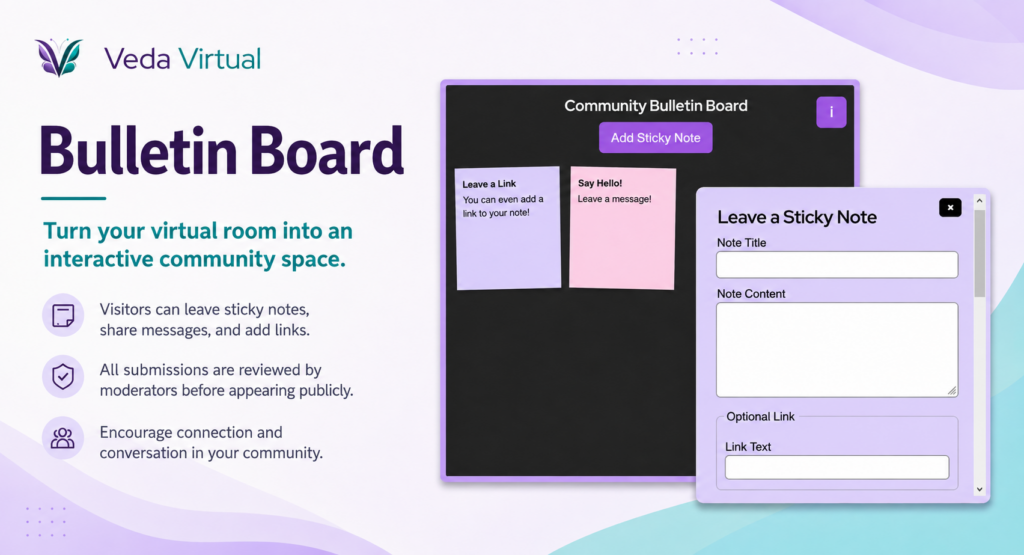
Turn your virtual room into an interactive community space with a customizable sticky-note board.
Visitors can leave messages, introductions, questions, resources, links, and other notes directly on the board. You stay in control by reviewing submissions before they appear publicly.
Depending on how you set up your board, visitors can also add images, links, choose a sticky-note color, or set an expiration date for their note.
The Bulletin Board works well for networking rooms, coworking spaces, events, classrooms, support groups, community hubs, brainstorming sessions, feedback walls, or anywhere you want visitors to participate instead of just look around.
You control what gets posted. New notes are sent to you for approval first, so visitors cannot instantly put something public on your board without your review.
Try the board! Open a sticky note to see how visitors interact with approved posts. On your own Bulletin Board, visitors can submit new notes for you to review and approve.
Bulletin Board FAQ
Can I bring an expired note back to the board?
Yes. You can restore an expired note. Its old expiration date is removed and the note is returned to the approved board.
Can I change the Bulletin Board colors?
Yes. You can customize the board color, border color, board header color, button color, and button text color.
Can I change the fonts on my Bulletin Board?
Yes. You can choose a header font and a text font. Those font choices are used on both the board and its sticky notes.
Can I change the heading on my Bulletin Board?
Yes. The Board Heading setting controls the title visitors see at the top of the board.
Can I change the order of approved notes?
Yes. You can reorder approved notes to control the order they appear on your Bulletin Board.
Can I change the sticky-note text and button colors?
Yes. You can choose the note header color, note text color, note button color, and note button text color.
Can I choose which day I receive weekly Bulletin Board notifications?
Yes. If you choose Weekly, you can select the day of the week for your pending-note summary.
Can I delete a visitor note?
Yes. The board owner can permanently delete notes they no longer want to keep.
Can I edit a visitor’s note?
Yes. As the board owner, you can edit a submitted note, including its title, message, color, link, expiration date, and image where applicable.
Can I preview my Bulletin Board before saving it?
Yes. The generator includes a live preview so you can see changes to the board style, note palette, fonts, and layout while you customize it.
Can I reject a visitor note?
Yes. You can reject a pending note instead of approving it. Rejected notes are kept separate from the approved notes.
Can I resize the Bulletin Board in my room?
Yes. You can resize the embed in your virtual room. The Notes shown on the first screen setting controls how the notes are sized within that space.
Can I restore a rejected note?
Yes. A rejected note can be restored to Pending so you can review it again.
Can I turn off expiration dates?
Yes. Leave Allow visitors to set an expiration date turned off if you do not want visitors choosing expiration dates.
Can I turn off image uploads for visitors?
Yes. Turn off Allow visitors to add an image when creating or editing your Bulletin Board.
Can I turn off links on visitor notes?
Yes. Turn off Allow visitors to add a link and the link fields will not be available for visitor submissions.
Can visitors add images to their sticky notes?
Yes, if you turn on Allow visitors to add an image in the Bulletin Board settings.
Can visitors add links to their notes?
Yes, if you enable Allow visitors to add a link in the Bulletin Board settings.
Can visitors choose the color of their sticky note?
Yes. Visitors choose from the note colors available in the palette you selected for that Bulletin Board.
Can visitors choose when their note expires?
Yes, if you enable Allow visitors to set an expiration date. Visitors can choose today or a future date.
Do Bulletin Board images count toward my Veda Media Library storage?
Yes. Images uploaded to notes on your Bulletin Board are stored under your Veda account and count toward your Media Library usage.
Do I need to replace the embed code after editing my Bulletin Board?
No. Edit and save the existing Bulletin Board. The same saved-widget embed will use the updated board settings.
Do images on rejected or expired notes still use my storage?
Yes. An image continues to use your media storage while the note and its image are still being kept. Removing the image or deleting the note frees that image from the board’s usage.
Do visitor notes appear immediately?
No. New visitor notes are sent to Pending first. You approve the notes you want displayed on the public board.
How do I approve a visitor note?
Open the management area for your saved Bulletin Board, go to Pending, and approve the note. Approved notes then become available on the public board.
How do I create a Bulletin Board?
Open the Bulletin Board generator, customize the board, give it a widget name, and save it. Once saved, copy the embed code and place it in your virtual room.
How do pending-note email notifications work?
The Bulletin Board can send a summary to your Veda account email when notes are waiting for approval. You can choose a daily or weekly summary.
How large can a visitor’s note image be?
A Bulletin Board note image can be up to 1 MB.
How many notes can I show on the first screen?
The Bulletin Board currently offers layouts designed for 6, 12, 20, or 30 notes on the first screen.
What are Pending, Approved, Rejected, and Expired notes?
Pending notes are waiting for your review. Approved notes are displayed on the board. Rejected notes were declined by you. Expired notes reached their expiration date and are no longer displayed.
What can visitors post on a Bulletin Board?
Every note requires a title and message. Depending on the options you enable, visitors may also be able to add an image, a link, or an expiration date.
What does Notes shown on the first screen mean?
This setting controls how many notes the board is designed to show before visitors move through more notes. It does not lock the physical size of the embed in your room.
What happens if my Media Library is full?
Visitors will not be able to add another image to your Bulletin Board when the upload would exceed your media limits. Notes without images can still be submitted when allowed.
What happens when a sticky note expires?
An expired note is removed from the approved public display and moved into the Expired group for the board owner.
What is the Board Information field?
Board Information is where you can give visitors instructions or explain how you want the board used. Visitors can open it from the information button on the board.
What is the Bulletin Board widget?
The Bulletin Board is an interactive sticky-note board you can place in a virtual room. Visitors can submit notes, and you decide which notes appear publicly on the board.
What sticky-note color palettes are available?
The Bulletin Board includes Basic, Pastel, and Neon sticky-note color palettes.
What time are Bulletin Board notification summaries sent?
Notification summaries are sent after midnight using the site’s timezone.
Will I get an email when there are no notes waiting for approval?
No. Pending-note summaries are only sent when notes are waiting for your approval.